
How to Obtain UUIDs
Indications on where to find required UUIDs for v1 endpoints.
Finding the required Universally Unique Identifier (UUID) for a v1 endpoint isn't always intuitive. This guide indicates how to manually obtain the required UUIDs on the UserTesting web page.
Clip UUIDs
The v1/clip/CLIP_UUID endpoint allows you to get clips. Clips are segments of sessions videos that can be shared with stakeholders for analysis. They can be shared individually or as part of a highlight reel.
Note: Only video clips from the following test (study) types can be requested through the
v1/clip/CLIP_UUIDendpoint:
Test type (UI name) type (API) Live Conversation (Classic experience) LIVE Video Upload EXTERNAL_UPLOAD Prototype test (Unmoderated tests - Classic test types) PROTOTYPE App test (Unmoderated tests - Classic test types) APP Web test (Unmoderated tests - Classic test types) WEB
To use the endpoint, you'll need to provide the clip's UUID as a path parameter in the request. The clip's UUID can only be manually obtained through the URL address bar of your browser when you open the clip.
Tip: If need to access a clip that is found within a highlight reel, you can use the
/v1/ highlightreel/HIGHLIGHT_IDendpoint to get the URL that contains the UUID. See the Highlight reel UUIDs section for details.
How to manually obtain a clip UUID
Follow these steps to open a clip and obtain its UUID on the UserTesting web page:
-
Open the UserTesting homepage and navigate to the Tests section.
-
Select a test type with video clips supported by the clips endpoint, e.g., Live Conversation.
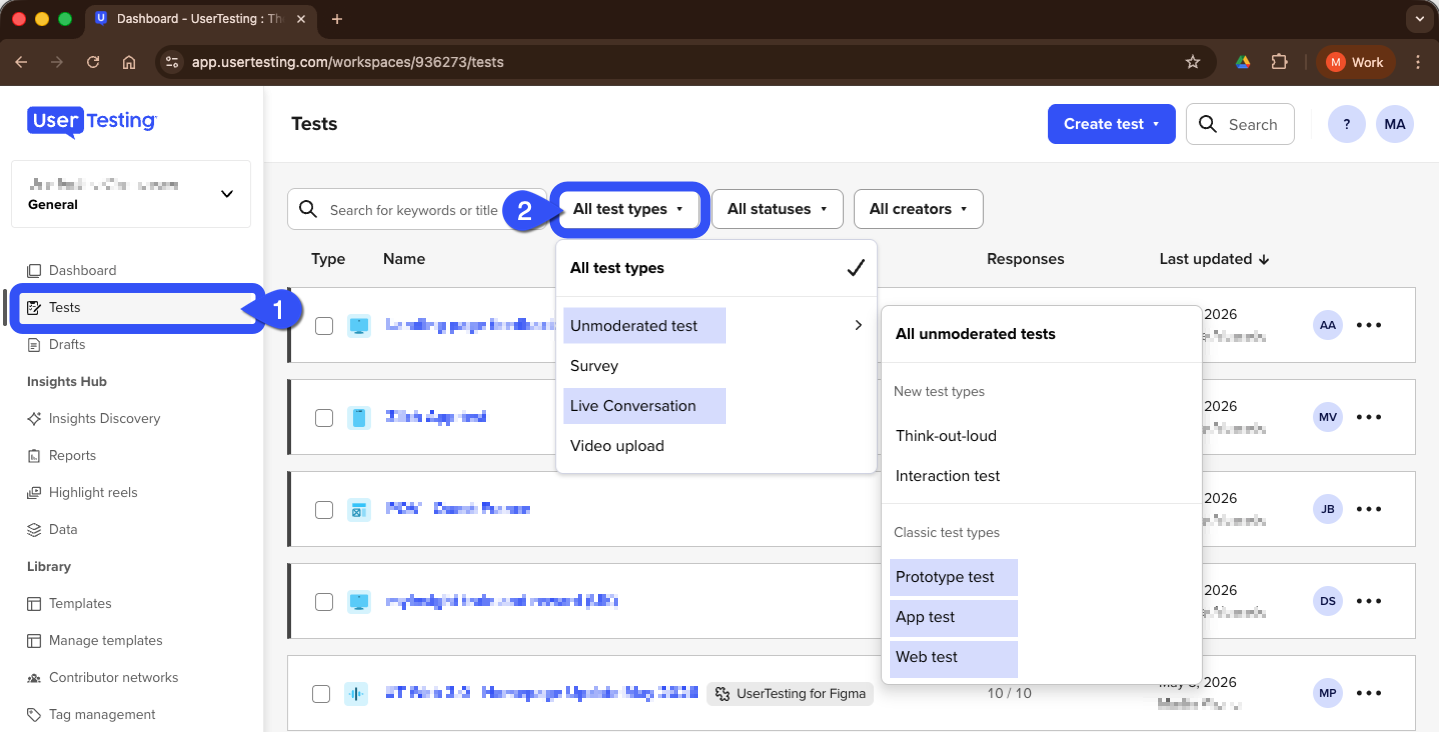
Tests section in UserTesting UI
-
Select a test with completed sessions.
-
Play a session with clips. (Or create your own clips within the session video).
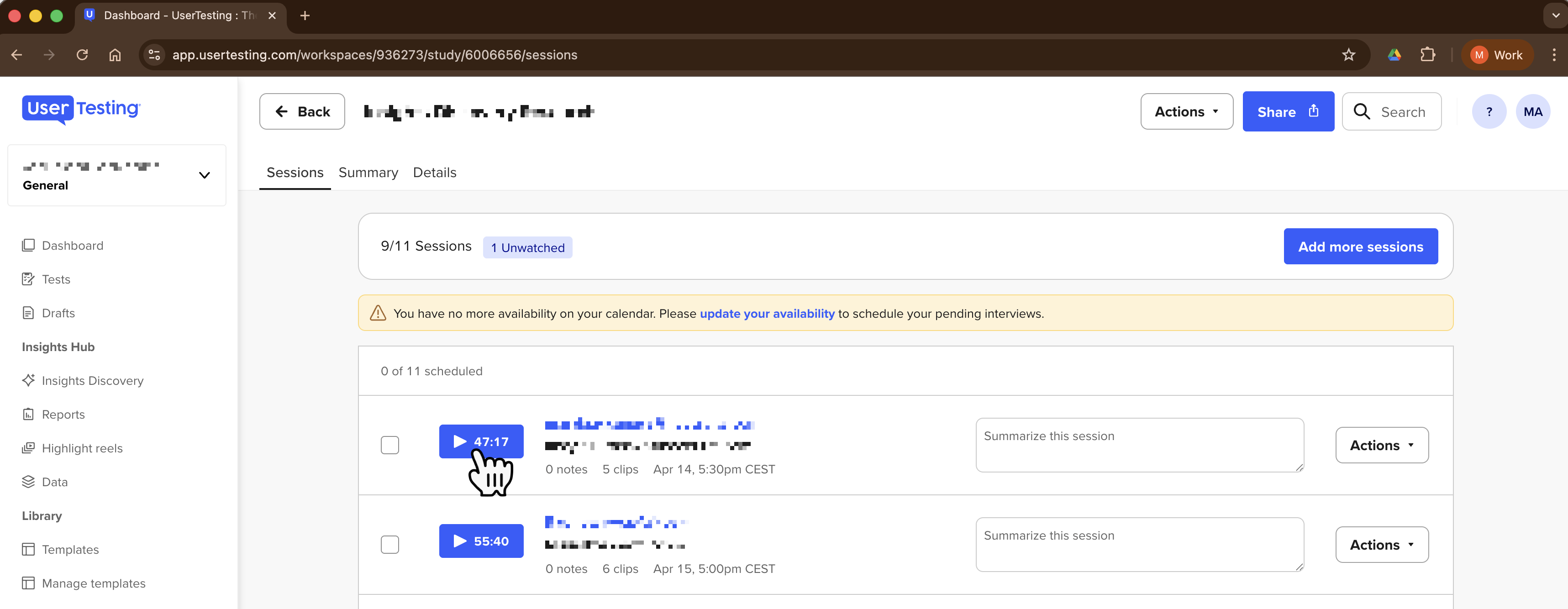
List of sessions within a test or study
-
Click a clip's options menu and select Share.
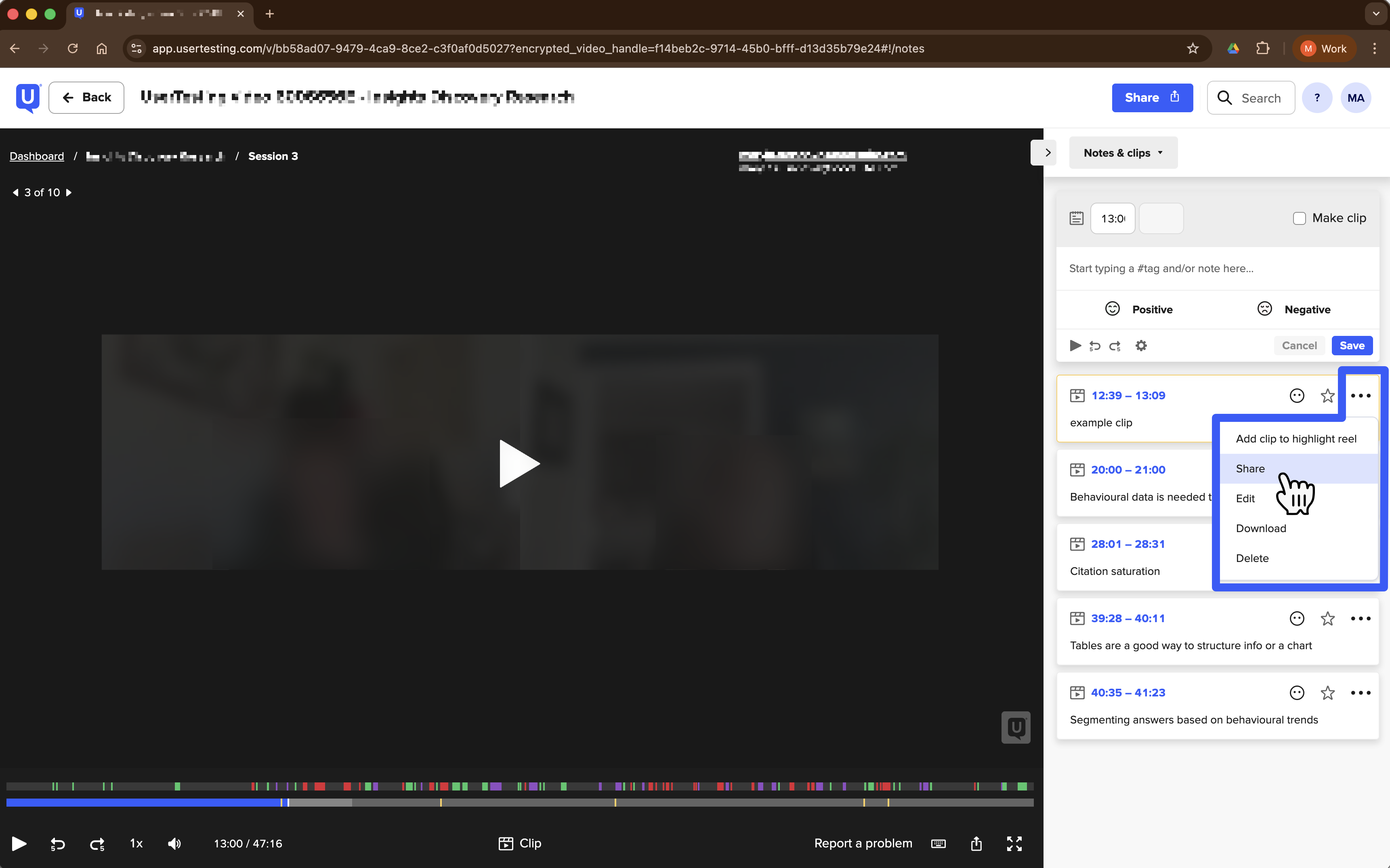
Session video with clip management
-
Click Copy link and then Done.
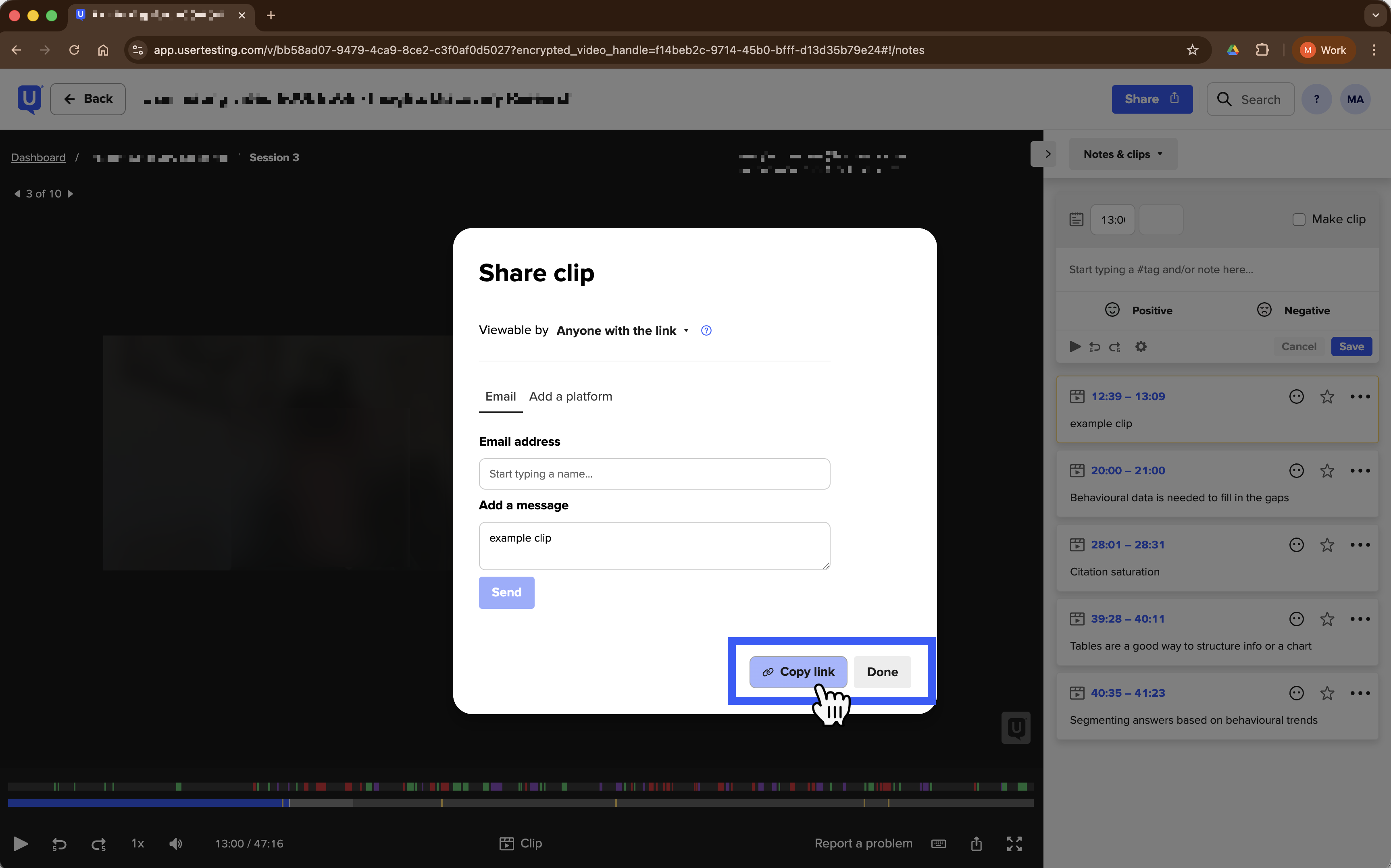
Share clip dialog box
-
Paste the link in a new browser tab (or any text field).
-
From the URL you just pasted, copy the UUID.
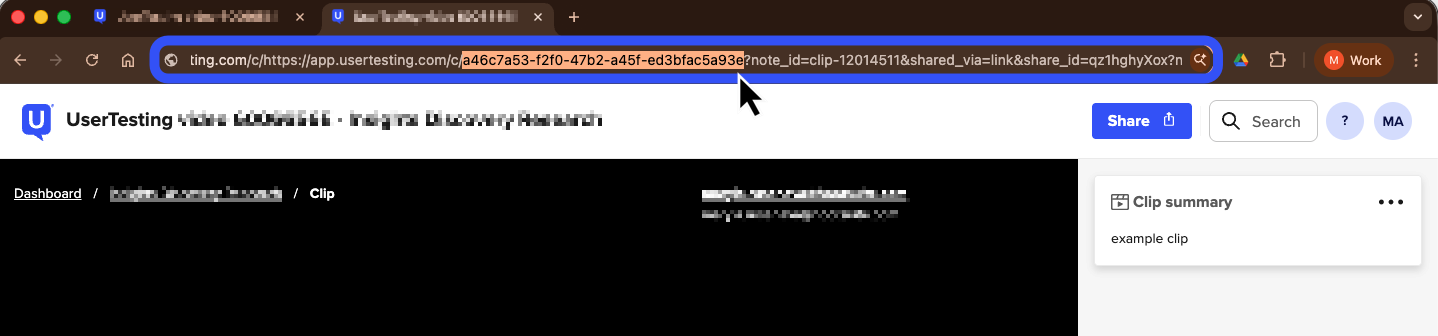
UUID selected within URL on address bar
-
Store the UUID for use on your
v1/clip/CLIP_UUIDendpoint request.
Highlight reel UUIDs
A highlight reel is a collection of clips that can be shared with external users to showcase significant moments within a session.
Use the /v1/ highlightreel/HIGHLIGHT_TOKEN endpoint to obtain highlight reel data. To use the highlight reel endpoint you must provide the highlight reel TOKEN as a path parameter in the request.
The highlight reel token can only be obtained manually.
The v1 highlight reel endpoint is only compatible with the following test (study) types:
Test type (UI name) type (API) Live Conversation (Classic experience) LIVE Video Upload EXTERNAL_UPLOAD Prototype test (Unmoderated tests - Classic test types) PROTOTYPE App test (Unmoderated tests - Classic test types) APP Web test (Unmoderated tests - Classic test types) WEB
How to manually obtain the highlight reel token
-
From the UserTesting homepage, select Highlight reel on the navigation panel.
-
Select a highlight reel from the list.
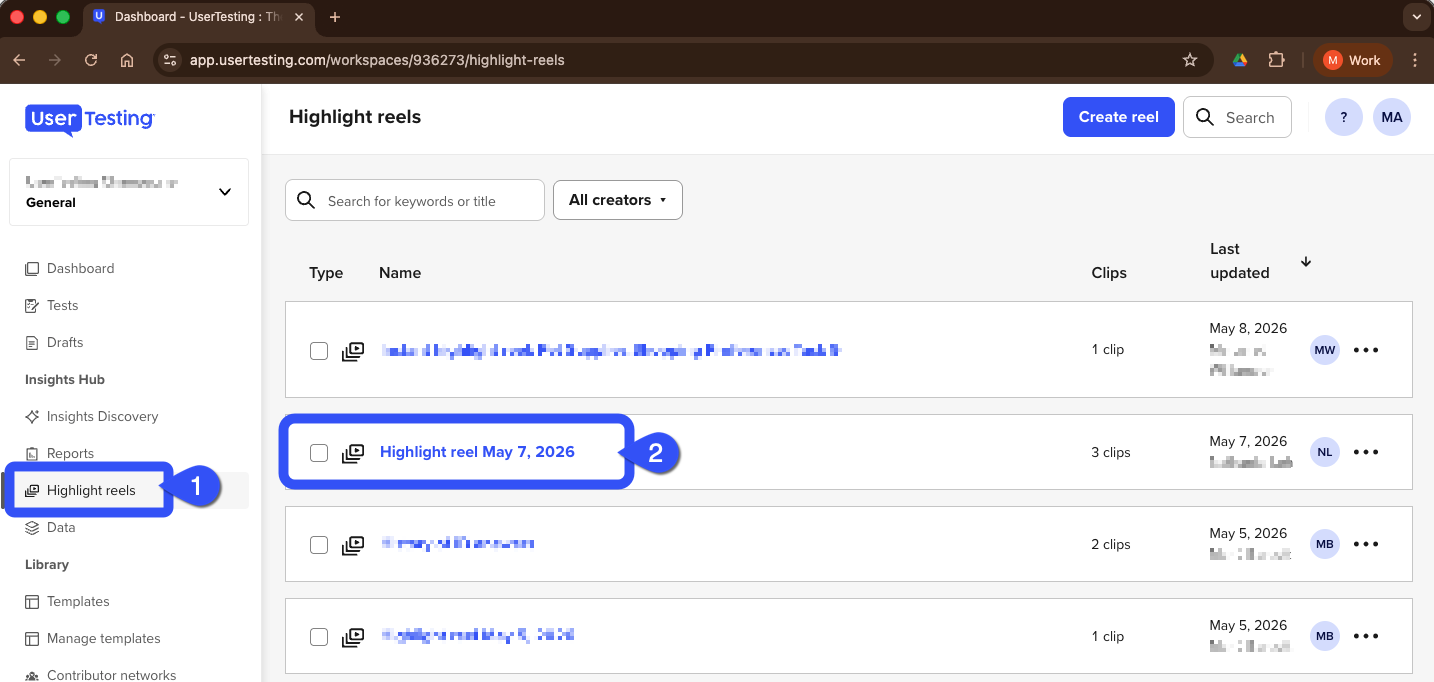
Highlight reels section
-
After the highlight reel opens on the web browser, copy the token from the URL in the address bar.
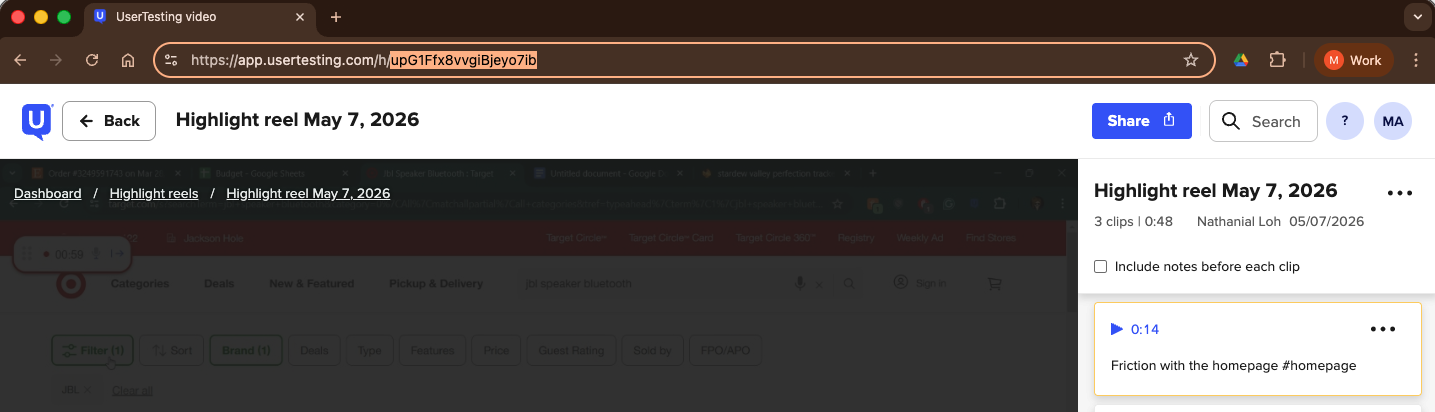
Highlight reel player
-
Store the token for use on your
/v1/ highlightreel/HIGHLIGHT_TOKENrequest.
Study UUIDs
Obtain a study (test) UUID to use on the /v1/studies/STUDIES_UUID and /v1/studies/STUDIES_UUID/completed-sessions endpoints to obtain test configuration information or details about each session within the study (test) respectively.
Only the following test (study) types are compatible with v1 endpoints:
Test type (UI name) type (API) Live Conversation (Classic experience) LIVE Video Upload EXTERNAL_UPLOAD Prototype test (Unmoderated tests - Classic test types) PROTOTYPE App test (Unmoderated tests - Classic test types) APP Web test (Unmoderated tests - Classic test types) WEB
To obtain a study (test) UUID, you can either:
- use the the
v1/workspaces/WORKSPACE_IDAPI endpoint - or do it manually through the UserTesting web page as indicated in the next section
Manually obtaining a study UUID:
-
From the UserTesting home page, go to the Tests section.
-
Select a test.
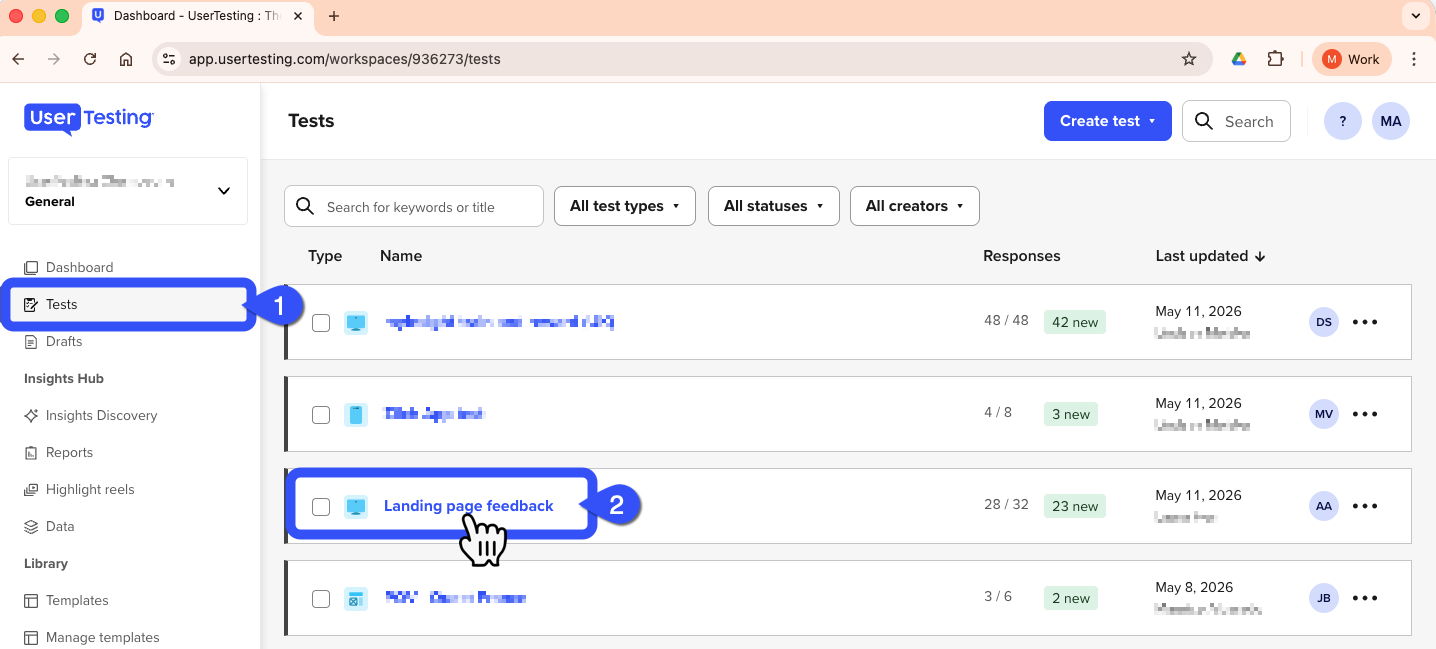
Test section
-
Click the Actions dropdown menu.
-
From the dropdown menu, select Edit test details.
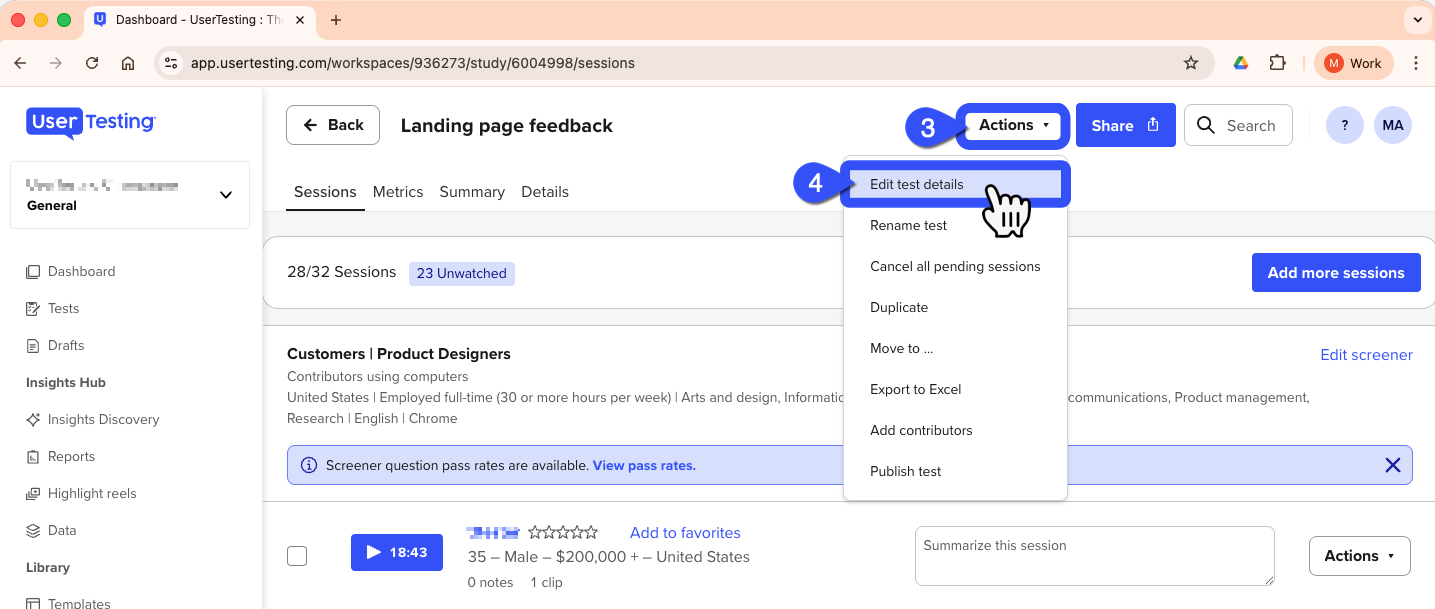
Test sessions page
-
Copy the UUID found within the URL that is in the address bar.
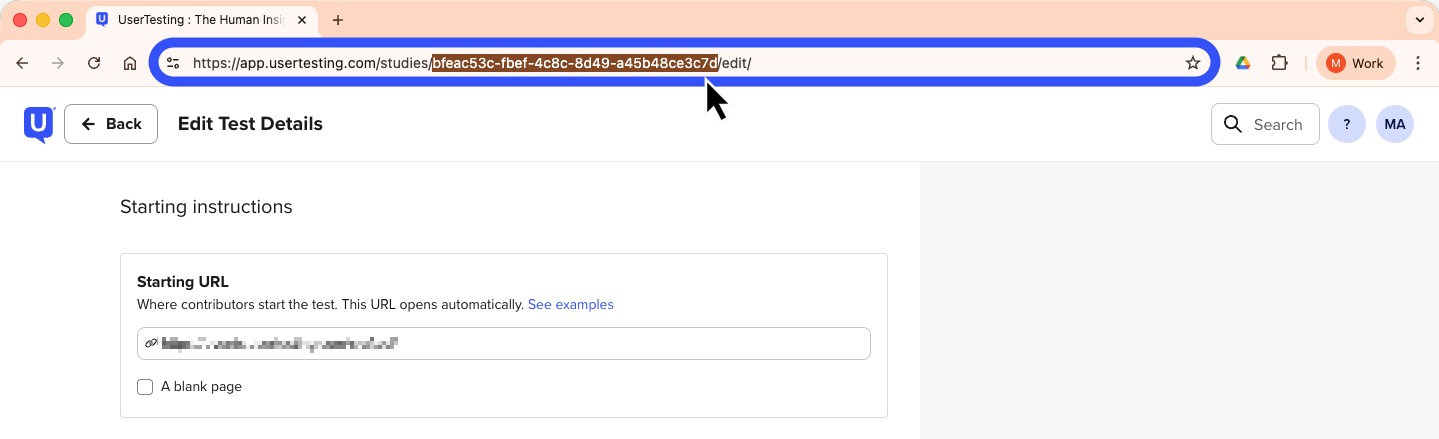
Edit Test Details page
-
Store the UUID for use on the corresponding endpoints.
Session UUIDs
A session is a record of a participant's interaction with a test.
Use the /v1/session/SESSION_UUID endpoint to get session metadata.
To obtain a session UUID, you can use either of the following methods:
- use the the
v1/studies/STUDY_UUID/completed-sessionsAPI endpoint - or do it manually through the UserTesting web page as indicated in the next section
Manually obtaining a session UUID:
-
From the UserTesting home page, go to the Tests section.
-
Select a test.
Test section
-
From Sessions list, select a session.
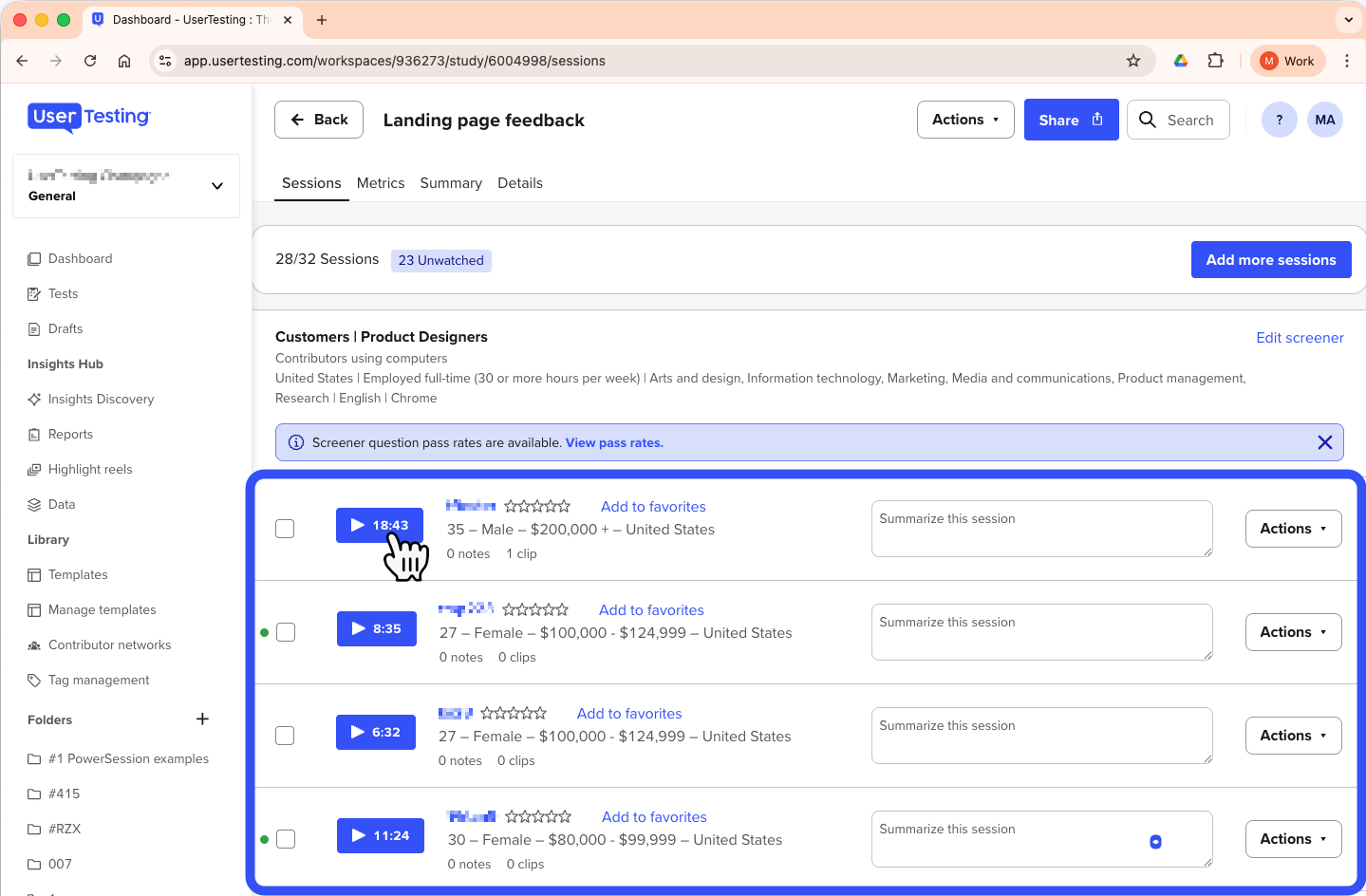
Sessions page
-
Copy the UUID found within the URL that is in the address bar.
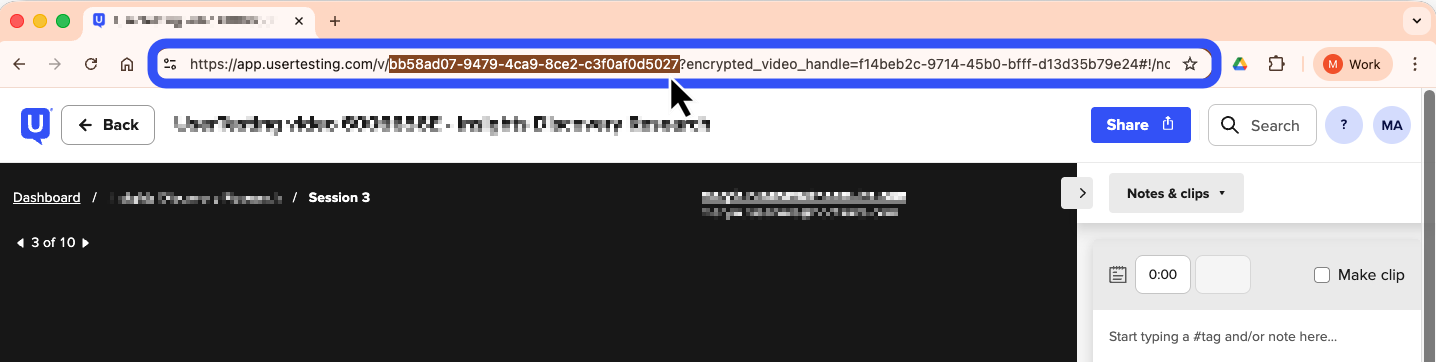
Session video player
-
Store the UUID for use with the
/v1/workspaces/SESSION_UUIDendpoint.
Workspace UUIDs
To obtain workspace UUIDs, it's preferable to use the /v1/workspaces endpoint.
Updated 4 months ago