
How to Obtain a Test ID (UUID)
Use the UserTesting UI to Find Test IDs.
For some requests, you will need to provide the testId of the test you want to get data from.
The testId is a universally unique identifier (UUID) that is used to identify tests, for example: 123e4567-e89b-1234-a2b3-1234567890ab.
Recommended method
The Results API (v2 & v3) works only on the latest test types and the sessions associated with them.
Use the response from the /v1/workspaces/WORKSPACE_UUID endpoint to find compatible tests, i.e., tests (studies) with a type property set to STUDYV2.
Compatible tests include:
| Test type (UI name) | type (API - property value) | productType (API - property value) |
|---|---|---|
| surveys | STUDYV2 | SURVEY |
| interaction tests | STUDYV2 | NON_THINK_OUT_LOUD |
| think-out-loud (beta) | STUDYV2 | THINK_OUT_LOUD |
| live conversation | STUDYV2 | LIVE_CONVERSATION |
Tips when using the
/v1/workspaces/WORKSPACE_UUIDendpoint:
- Use the
/v1/workspacesendpoint to get aWORKSPACE_UUID.- The endpoint does not include a filter query parameter, so you will need to apply your own logic to get the corresponding
STUDYV2results and their associateduuidvalues.- To get more precise test types, use the
productTypeproperty in your search.
Attention: Classic UserTesting tests and their resources are NOT available via the Results API (v2).
These tests include:
Live Conversation (Classic), Video Upload (Classic), Prototype Test, App Test, and Web Test.Use legacy endpoints (v1) to access classic UserTesting data.
Manual method
To obtain a testId, follow these steps:
-
Log in to the UserTesting app.
-
On the navigation panel, select a workspace.
-
On the same panel, select Tests.
-
In the Tests section, select the All test types button to sort tests by one of the compatible test types, for example:
SurveyLive Conversation(newer version, not classic)Unmoderated > Interaction testUnmoderated > Think-out-loud test.
-
Select the test you want to request data for through the API.
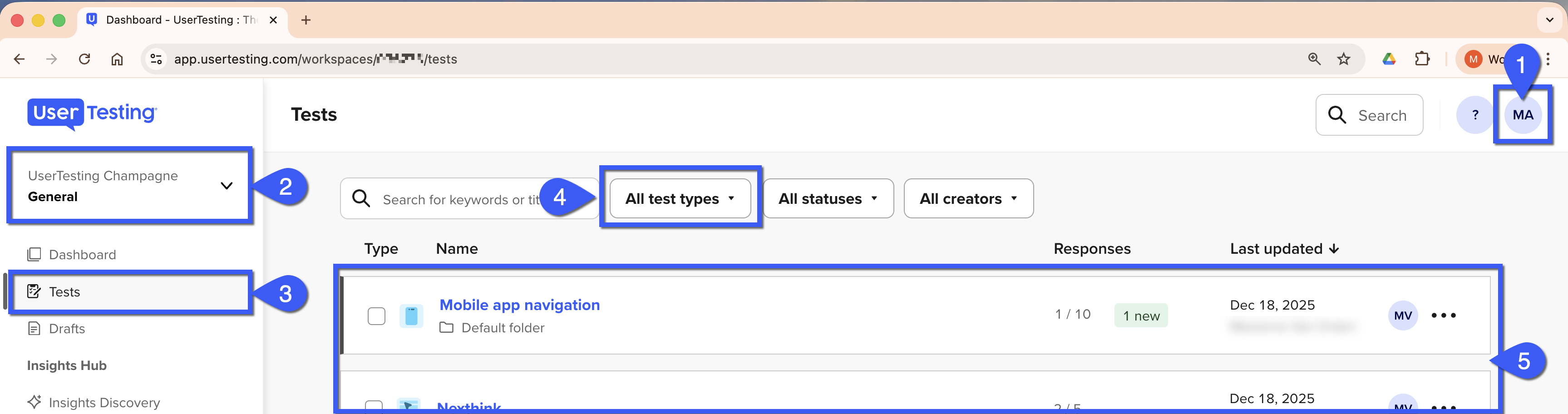
UserTesting UI
- In your browser’s address bar, copy the UUID found in the URL.
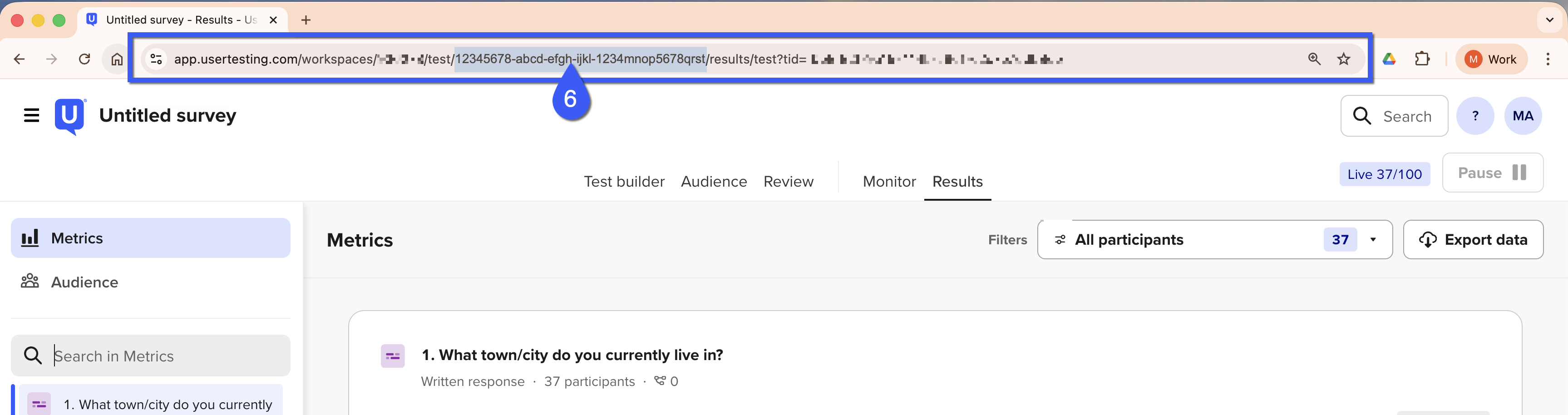
Address bar with UUID in URL
-
Make your API request using the UUID you just copied.
For example, to obtain a list of all sessions within a test, in the
testIdquery parameter of the following endpoint, replace theTEST_IDplaceholder with the UUID with the value you obtained. :GET
/api/v2/sessionResults/?testId=TEST_IDRequest sample:
curl --request GET \
     --url 'https://api.use2.usertesting.com/api/v2/sessionResults?testId=TEST_ID' \
     --header 'Accept: application/json' \
     --header 'Authorization: Bearer ACCESS_TOKEN'
Replace the TEST_ID and ACCESS_TOKEN placeholders with the corresponding values.
Updated 4 months ago